
Flowchart Management
If you have any questions or need assistance, please contact catalog@calpoly.edu.
Flowchart Users Guide
Viewing Flowchart Proposal in Workflow
After logging into the Cal Poly Portal select the Academics tab and find the Curriculum Management portlet, select the Workflow link.
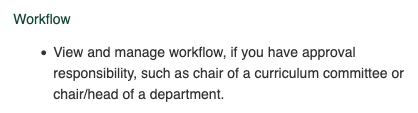
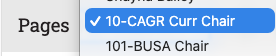
- The Approval Workflow page defaults to your existing username (which will always be empty), select the college or department role from the drop down list. Example:
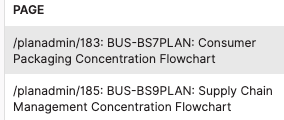
- Review flowchart proposal(s) that listed when your approving role is selected. Example:
- If no edits or changes are needed, then select the flowchart proposal in the list and select the Approve button on the right hand side.

- If edits are needed, please see the Edit Flowchart Proposal in Workflow for further support.
Edit Flowchart Proposal in Workflow
- Plan of Study Grid Overview
- Add a Course
- Removing/Moving a Course
- Add a Course Option
- Range of Units on Courses or Program Requirements
- Add a Sequence Course
- Comment Entries
- Add a Comment Entry
- Update an existing Comment Entry
- Save your changes
After navigating to Workflow, select the flowchart proposal that you plan to edit.
Select the Edit button to open a new window with the flowchart proposal in a editable form.
Plan of Study Grid Overview
Double Click the "Plan of Study Grid" to open a pre-formatted table used to populate the flowchart content.
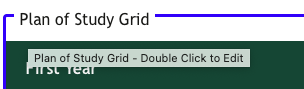
Example view of Plan of Study Grid:
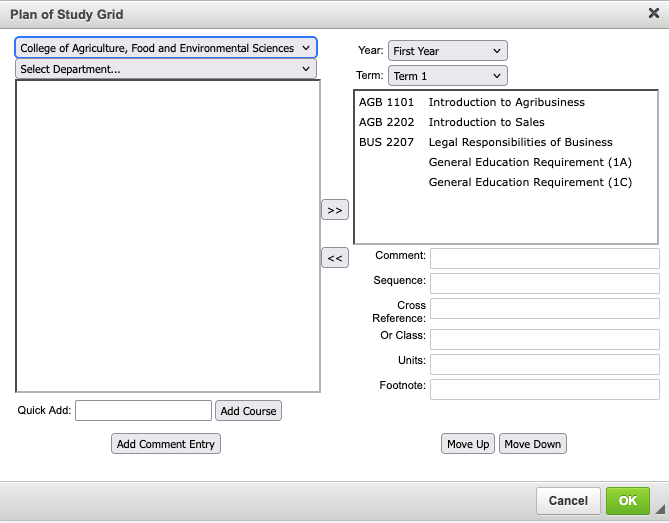
Use drop down toggles for "Years" and "Terms" to view and/or make edits to each of the corresponding sections.
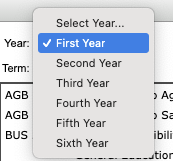
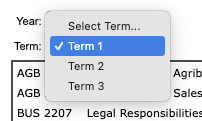
When making changes be sure to select OK to save changes. Selecting Cancel will not retain any of the changes made in the table.

Fields
- Comment = comment entries is text used to show a requirement
- Sequence = used to add a sequence course to the same requirement line
- Cross Reference = used for indicating crosslisted course(s)
- Or Class = to reflect alternative course options to meet the requirement
- Units = will automatically populate units associated with course added, may appear blank for when sequence field is used to show combined total of units in the table.
- Footnote = used to reflect the number of the corresponding footnote
Add a Course
- Add a course by entering the prefix and course number to the Add a Course field

- Alternatively, if the course number is unknown, you can use the college drop down toggle to show a list of prefixes to choose from. Selecting a prefix will display course numbers and titles under that prefix (ex. ASCI).
- IMPORTANT: Both quarter and semester course titles are included, so please be mindful to only select a 4 digit semester course.
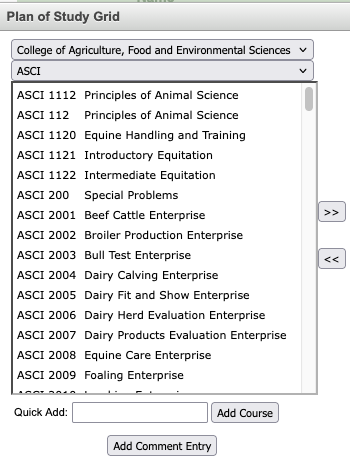
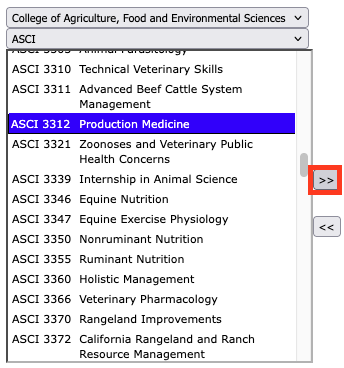
- Select the course that you want to add from the list and choose the double arrow icon to add it to the corresponding Year and Term section.
Removing/Moving a Course
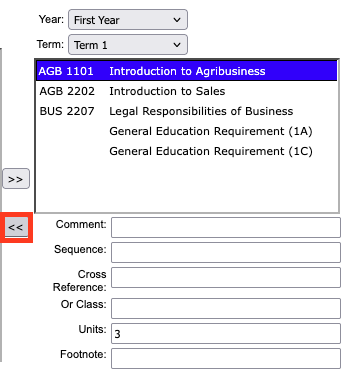
- Select the Year and Term corresponding with the course that should be removed. Select the Course (ex. AGB 1101) and hit the double arrow icon to remove it from the list.
- IMPORTANT: Please write down any content in the Comment, Sequence, Cross Reference, Or class, and footnote fields as that information does not retain when moving a course.
Add a Course Option to an existing Course Requirement
- Select the corresponding Year and Term from the drop down toggles to pull up the section of flowchart to be updated.
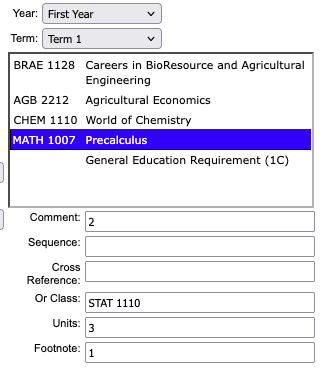
- In the "Or Class" field enter the prefix and course number of the alternative course option(s).
Example of course requirement:
Example of Plan of Study Grid table:
Range of Units on Courses or Program Requirements
Some course options will have different unit totals to complete that requirement.
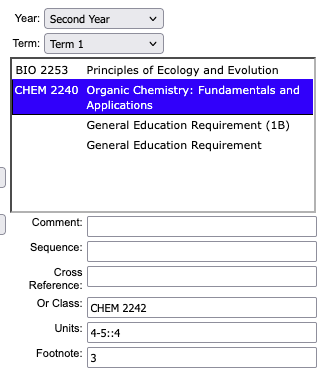
For example, CHEM 2240 or CHEM 2242 are both Organic Chemistry courses, however, CHEM 2240 is 4 units and CHEM 2242 is 5 units.
If range of units (ex. 4-5) exsits on a course in the Plan of Study Grid table, then a range will be reflected in the total units (ex. 119-120). Because we want to reflect, in most cases, that students need to complete a certain number of units to be awared the degree, e.g. 120 units, we force a specific total for the course requirement and balance this out with other requirements that have ranges. See an example of this on CHEM 2240 or CHEM 2242.
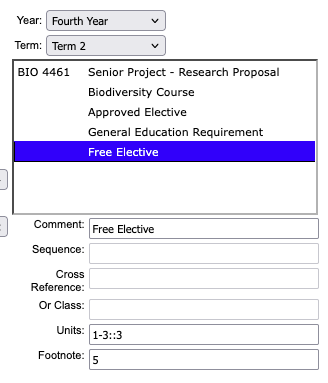
To force a total number of units in a range, use :: followed by the number it should be "forced" into adding into the total units.
An example of a range of units in a comment entry, Free Elective
Add a Sequence Course to an existing Course Requirement
- Select the corresponding Year and Term from the drop down toggles to pull up the section of flowchart to be updated.
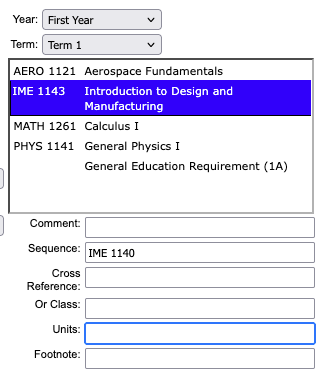
- In the "Sequence" field enter the prefix and course number of the course that is intended to be taken together. Typically, these are courses intended to be taken concurrently together.
- Remove the unit value so that the system can combine the units and reflect it in the table.
Example of course requirement:

Example of Plan of Study Grid table:
Comment Entries
- Comment entries are used for either text populated in place of a course requirement (i.e. General Education Requirement, Concentration Course, Approved Elective, etc.) or additional information to be displayed alongside a course. If the comment is not associated with a course, then the text is initially added via the "Add Comment Entry" button, afterwards, text can be edited via the Comment: field.
Add a Comment Entry
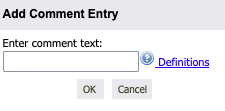
Select "Add Comment Entry"
A new popup window displays where you can enter in the text of the course requirement.
Add a Comment to an existing Course
Courses that double count for another requirement (i.e. General Education) may include additional text to reference which GE area is being met.
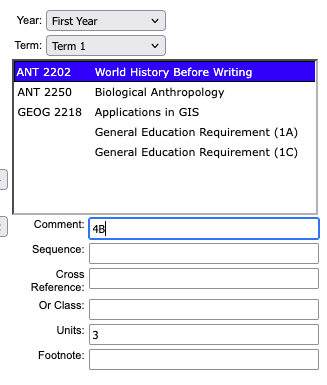
- Select the Year and Term corresponding with the course that should be updated
- Select the course in the list
- Use the Comment field to enter in text and/or make edits to the existing text.
- Using Enter on your keyboard will reflect the changes in the table as they are made.
Example of adding 4B to ANT 2202
Update an existing Comment Entry
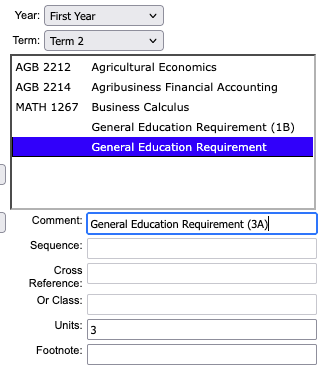
For example if a department is wanting to specify the type of General Education Requirement that a student should be taking in a particular term, then the comment entry can be updated to include that specified GE.
- Select the Year and Term corresponding with the comment entry that should be updated
- Select the comment entry in the list
- Use the Comment field to make edits to the existing text, using Enter on your keyboard will reflect the changes in the table as they are made.
- Selecting OK will save the changes
Example of updating General Education Requirement to be specifically 3A
Save your changes
- To save in-progress changes select OK when the Plan of Study Grid table is open
- To save in-progress changes and close the form, select the 'Save Changes' button at the bottom of the form.