Curriculum Management User Guide
Due to an upgrade to the Curriculum Management system, a new layout for the Workflow page has been implemented. This User Guide will provide instructions on how to do the following:
Review Workflow
Open Workflow Page
- If you’ve received an email notification that a proposal is in your workflow for approval, click on the link provided in the email. The link will take you to the Workflow page.
- If you haven’t received an email notification, you can navigate to Workflow by logging in to your My Cal Poly portal. In the portal, go to the Academic tab and click on the ‘Workflow’ hyperlink.
Find Proposal(s) to Approve
- Navigate to the Workflow page and click on the drop-down menu next to ‘Pages’ in the upper right-hand corner. This will display all the proposals in the various department/college workflow queues.
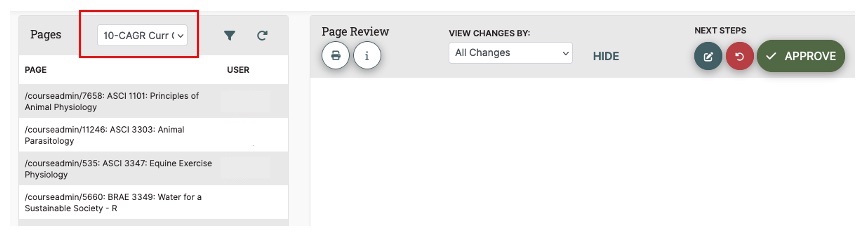
- In the drop-down menu, select the department/college workflow for which you are the approver (ex: 10-CAGR Curr Chair).
NOTE: There will never be any proposals under your name in the drop-down field. The proposals are only located in the assigned workflow approver roles.
- Select the proposal to review/approve, and a preview will load on the right side under the ‘Page Review’ header.
View Completed/Pending Approval Workflow Path
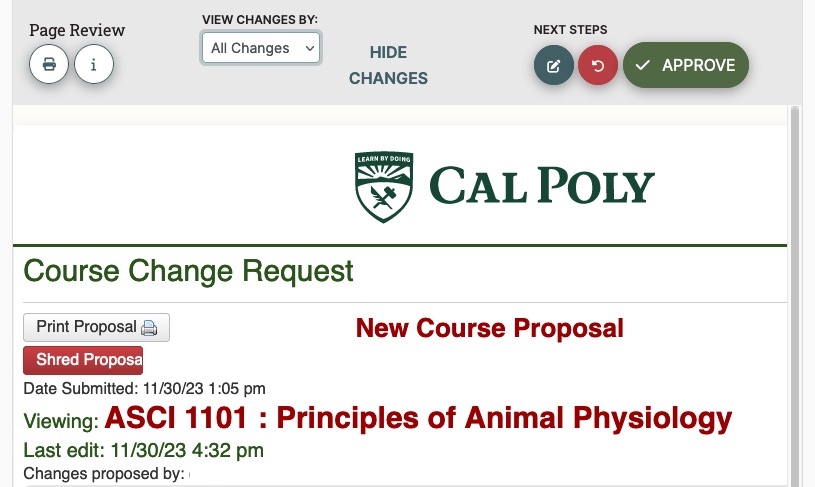
- After opening a proposal in Workflow, look for the ‘Pages’ header on the left-hand side of the form. Here you will find the completed ‘Workflow’ section. This shows the roles that have approved.
- The ‘Pending’ section shows which approvers in workflow still need to approve the proposal.
NOTE: Only Admin users can update changes to workflow. If you click on the ‘Update’ button, you will receive an error message.
View Proposal Changes
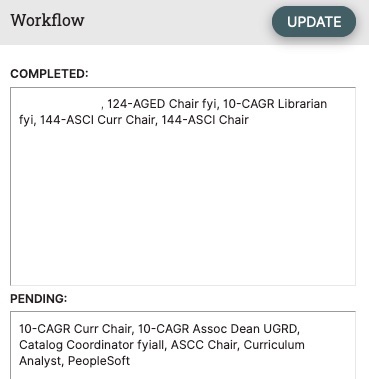
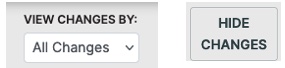
- For all proposals, you can view specific users' changes in red/green markup by clicking on the drop-down ‘View Changes By’ menu.
- If you want to hide the changes displaying in red and green markup, click on the ‘Hide Changes’ button.
Edit Proposals in Workflow
Edit Proposal
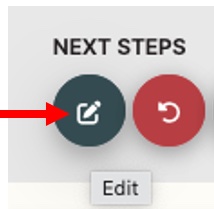
- To edit a proposal, click on the pencil icon under ‘Next Steps’. This will open the proposal in a new window.
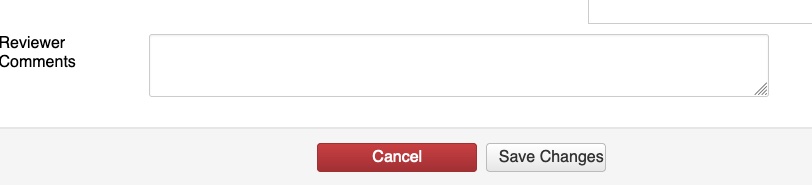
- When editing is complete, click ‘Save Changes’ at the bottom of the page.
Rollback Proposal
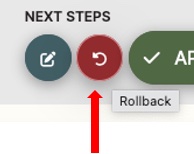
- To rollback a proposal, click on the red circle button under ‘Next Steps’. A ‘Rollback Page’ will appear.
- Click on the role to send the proposal back to another role in workflow or back to the proposer.
- Add a comment/reason in the text field.
- Hit the ‘Rollback’ button.
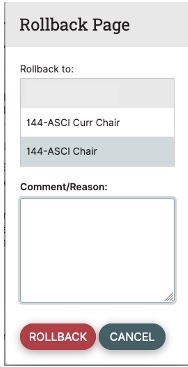
NOTE: If you select the first option in the ‘Rollback to’ list, this will send the proposal back to the proposer and out of workflow.
This means that the proposer needs to make the requested changes in a timely manner and re-submit the proposal back into workflow. This starts the approval process over again and ensures the proposal makes it through workflow.
Approve Proposal
- To approve a proposal, click on the green ‘Approve’ button. This will send the proposal to the next role in workflow.
Print Proposal
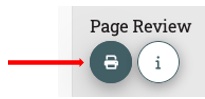
- To create a PDF or print a hard copy of a proposal, click on the printer icon under the ‘Page Review’ section.