Course and Program Management User Guides
User guides for using the Curriculum Management system can be found by clicking on the links provided below. If you have any questions or need assistance, please contact catalog@calpoly.edu.
Course Proposals
Edit Courses
For additional instructions refer to the Course Policies and Guidelines, topic: Edit an Existing Course.
- In the Curriculum Management portlet, select the Course Inventory Management link.
- Enter the prefix and number of the course in the Search field, e.g. FSN 2250. You may also search by subject or course title and use an asterisk (*) at the beginning and/or end of the value being searched, e.g. *Nutrition*.
- Select the course in the search results.
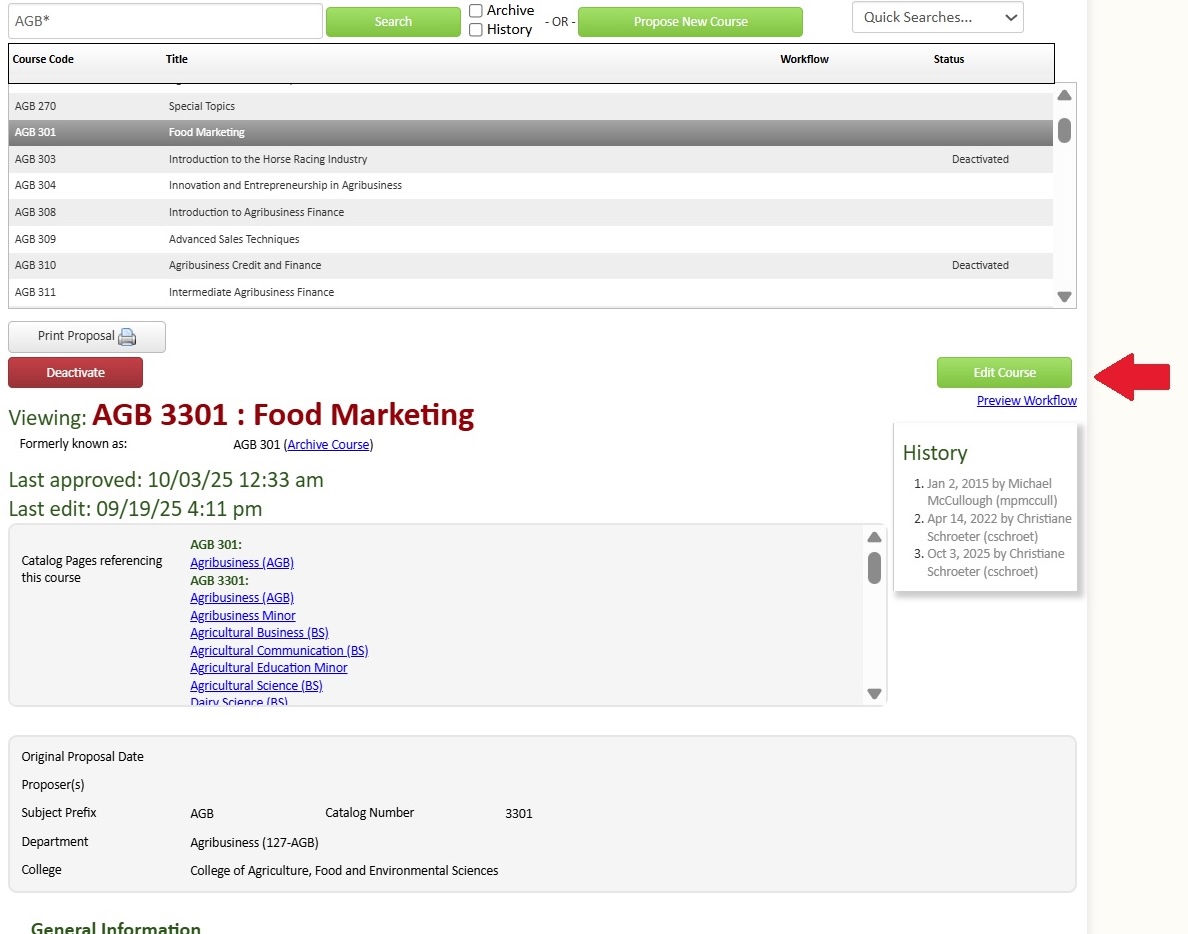
- Information about the course will display below, including links to programs and catalog pages in which the course appears. (See 'Catalog Pages referencing this course' section of the proposal in the screenshot below)
- Select the 'Edit Course' button to display the online form, which opens in a new browser window.
- To save in-progress changes and close the form, select the 'Save Changes' button at the bottom of the form.
- Once the proposal is completed, select the 'Start Workflow' button at the bottom of the form to submit it for review.
Deactivate Courses
Courses should be deactivated if they have not been offered in the last 6 years.
- In the Curriculum Management portlet, select the Course Inventory Management link.
- Enter the prefix and number of the program in the Search field, e.g. CE 3321. You may also search by subject or course title and use an asterisk (*) at the beginning and/or end of the value being searched, e.g. *Transportation*.
- Select the course in the search results.
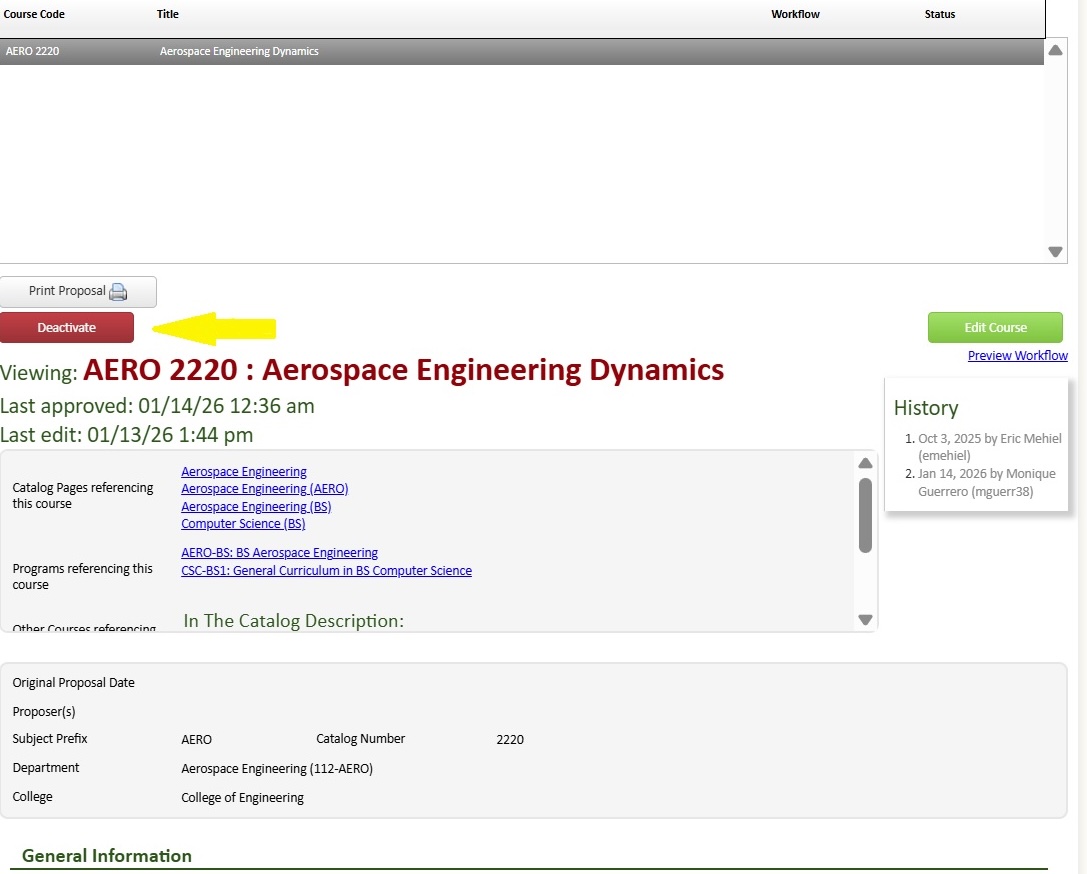
- Information about the course will display below, including links to programs and catalog pages in which the course appears. (See "Catalog Pages referencing this course" section of the proposal in the screenshot below)
- Select the Deactivate button to display the online form, which opens in a new browser window, for removing the course from the catalog.
Propose New Courses
For additional instructions refer to the Course Policies and Guidelines, topic: Propose a New Course.
- To propose a new course, go to the Curriculum Management portlet and select the Course Inventory Management link.
- Select the 'Propose New Course' button to display the online form, which opens in a new browser window.
- Answer the required fields within the new course proposal form.
- Select the
 next to a given field on the proposal form to show help bubble information.
- For additional information, please refer to the Course Policies and Guidelines, topic: Propose a New Course.
- To save in-progress changes and close the form, select the 'Save Changes' button at the bottom of the form.
- Once the proposal is completed, select the 'Start Workflow' button at the bottom of the form to submit it for review.
- Once a course is submitted into workflow, edits may only be made by the person assigned the role to approve the course.
General Education (GE) Courses
- Refer to the GE website, 'Proposing GE Courses.'
- Follow the instructions to Propose New Courses.
U. S. Cultural Pluralism (USCP) Courses
- Refer to the website with USCP course policy and criteria.
- Follow the instructions to Propose New Courses.
Graduation Writing Requirement (GWR) Courses
- Refer to the website Writing and Learning Initiatives for more information.
- Follow the instructions to Propose New Courses.
Program Proposals
Edit Programs (Description, Objectives/Outcomes, Curriculum)
- Program Descriptions, Program Learning Objectives, Program Requirements and Curriculum
- Refer to Program Policies and Guidelines.
- In the Curriculum Management portlet, select the Program Management link.
- Enter the name of the program in the Search field. Use an asterisk (*) at the beginning and/or end of the value being searched.
- Select the program in the search results and then select the Edit Program button to display the online form, which opens in a new browser window.

- If you are changing your curriculum by adding and/or deleting a course offered by another department,
- Prepare and send a consultation memo or email to the affected departments, and attach copies signed by the affected departments to the Edit Program form, using the Attach File(s) button at the bottom of the form.

- To save in-progress changes and close the form, select the 'Save Changes' button at the bottom of the form.
- Once the proposal is completed, select the 'Start Workflow' button at the bottom of the form to submit it for review.
- For changes between catalogs, use the Blanket Curriculum Substitution form.
Minors, Concentrations, Specializations or Graduate Certificates
For additional instructions refer to the Propose New Program Users Guide.
- Review academic policy for the program being proposed:
- Minor
- Concentration (for undergraduate programs)
- Specialization (for graduate programs)
- Graduate Certificate
- In the Curriculum Management portlet, select the Program Management link.
- Select the Propose New Program button to display the online form, which opens in a new browser window.

- To save in-progress changes and close the form, select the 'Save Changes' button at the bottom of the form.
- Once the proposal is completed, select the 'Start Workflow' button at the bottom of the form to submit it for review.
Deactivate a Program
For additional instructions refer to the Deactivate Program Users Guide.
- In the Curriculum Management portlet, select the Program Management link.
- Enter the name of the program in the Search field. Use an asterisk (*) as a wild card key at the beginning and/or end of the value being searched.
- Select the program in the search results and then select the Deactivate Program button to display the online form, which opens in a new browser window.
- After completing the form, select the 'Start Workflow' button at the bottom to submit for review.
Degree Programs
New Degree Program
Proposing a new major degree program is quite complex and a lengthy process.
Please contact the Academic Programs and Planning Office for more information.
Major Degree Program Name Change
The nature of degree program name changes may vary considerably, from a change that is minor to one that is quite significant (virtually a new program). All degree name changes must be submitted to the Chancellor's Office for approval.
Please contact the Academic Programs and Planning Office for more information.
Substantive Degree Program Change
As defined by Cal Poly's accrediting agency, the Western Association of Schools and Colleges (WASC), substantive changes include off-campus programs, distance learning programs, and an addition of a degree program at a level different from that previously offered by the university.
Please contact the Academic Programs and Planning Office for more information.
Deactivated Degree Program
Please contact the Academic Programs and Planning Office for more information.
Proposals in Workflow
Due to an upgrade to the Curriculum Management system, a new layout for the Workflow page has been implemented. This User Guide will provide instructions on how to do the following:
Open Workflow Page
- If you’ve received an email notification that a proposal is in your workflow for approval, click on the link provided in the email. The link will take you to the Workflow page.
- If you haven’t received an email notification, you can navigate to Workflow by logging in to your My Cal Poly portal. In the portal, go to the Academic tab and click on the ‘Workflow’ hyperlink.
Find Proposal(s) in Workflow
- Navigate to the Workflow page
- The Workflow page defaults to your existing username (which will always be empty)
- Click on the drop-down menu next to ‘Pages’ in the upper left-hand corner. This will display all the proposals in the various department/college workflow queues.
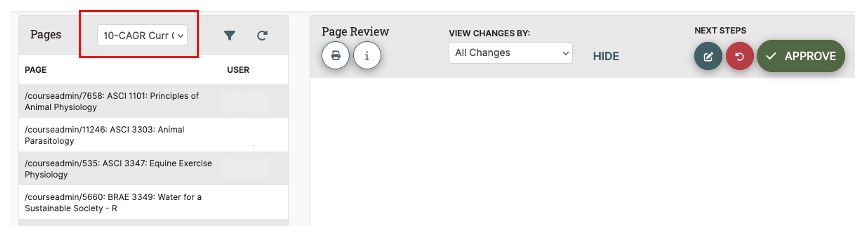
- In the drop-down menu, select the department/college workflow for which you are the approver or viewing proposals in that workflow role (ex: 10-CAGR Curr Chair).
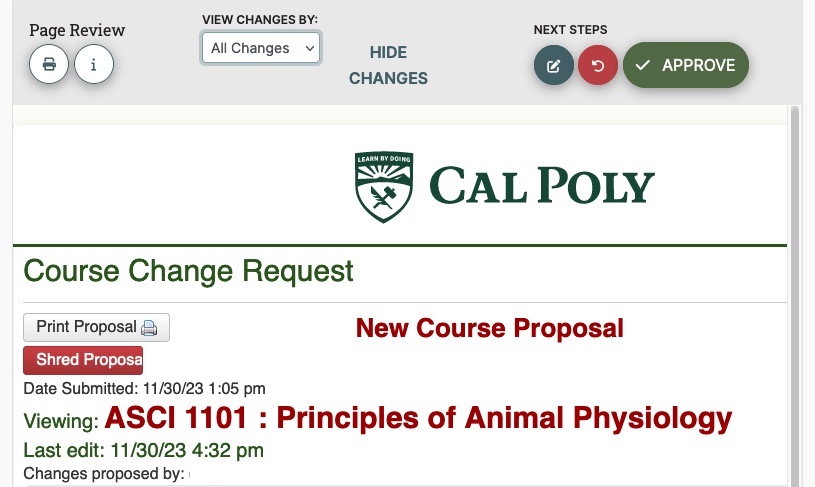
- Select the proposal to review/approve, and a preview will load on the right side under the ‘Page Review’ header.
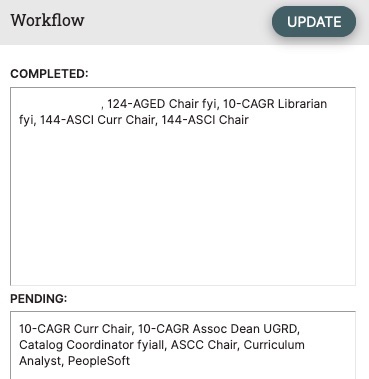
View Completed/Pending Approval Workflow Path
- After opening a proposal in Workflow, look for the ‘Pages’ header on the left-hand side of the form. Here you will find the completed ‘Workflow’ section. This shows the roles that have approved.
- The ‘Pending’ section shows which approvers in workflow still need to approve the proposal.
NOTE: Only Admin users can update changes to workflow. If you click on the ‘Update’ button, you will receive an error message.
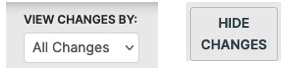
View Proposal Changes
- For all proposals in workflow, you can view specific users' changes in red/green markup by clicking on the drop-down ‘View Changes By’ menu.
- If you want to hide the changes displaying in red and green markup, click on the ‘Hide Changes’ button.
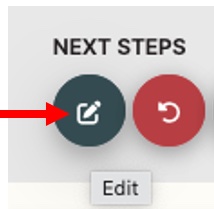
Edit Proposal in Workflow
- To edit a proposal, click on the pencil icon under ‘Next Steps’. This will open the proposal in a new window.
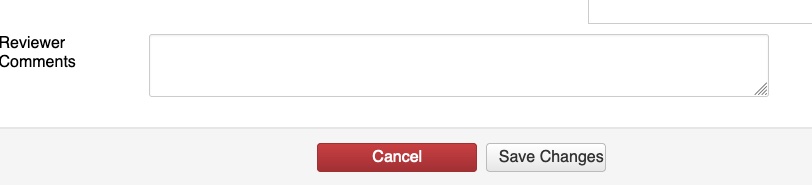
- Reviewer comments may be entered to document the changes made while in workflow.
- When editing is complete, click ‘Save Changes’ at the bottom of the page.
NOTE: Only the person(s) assigned the role in workflow may edit the proposal while it's in their workflow. Similarly, only authorized users may approve proposals from their assigned workflow role.
Rollback Proposal
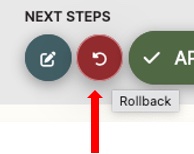
- To rollback a proposal, click on the red circle button under ‘Next Steps’. A ‘Rollback Page’ will appear.
- Click on the role to send the proposal back to another role in workflow or back to the proposer.
- Add a comment/reason in the text field.
- Hit the ‘Rollback’ button.
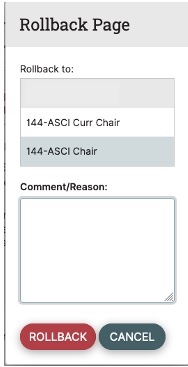
NOTE: If you select the first option in the ‘Rollback to’ list, this will send the proposal back to the proposer and out of workflow.
This means that the proposer needs to make the requested changes in a timely manner and re-submit the proposal back into workflow. This starts the approval process over again and ensures the proposal makes it through workflow.
Approve Proposal
- To approve a proposal, click on the green ‘Approve’ button. This will send the proposal to the next role in workflow.

NOTE: Only authorized users may approve proposals from their assigned workflow role. If a workflow role needs to be updated, please send an email to catalog@calpoly.edu.
Print Proposal
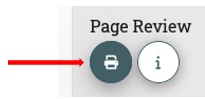
- To create a PDF or print a hard copy of a proposal, click on the printer icon under the ‘Page Review’ section.